

As I mentioned in my newsletter last week, I’m sharing Part 2 of my Google calendar time-saving tips. If you missed it last week, click here to read that newsletter.
Let’s dive back in!
Daily Agenda Email
Did you know that Google Calendar can send you a daily agenda email? This email will give you a quick overview of all the meetings you have scheduled for that particular day. Here’s how to enable that:
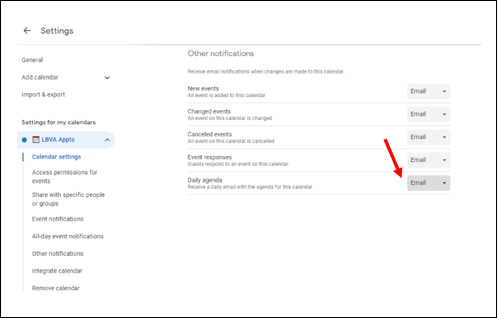
- Go back to Gcal Settings (gear icon)
- Select the calendar from the left-hand side
- Scroll down and select OTHER NOTIFICATIONS from left menu
- Daily Agenda – make sure it is set to email and now you will receive an email first thing in the morning with your schedule for that day!
Set up Multiple Time Zones
This is such a time saver if, like me, you work across multiple time zones with customers, clients or fellow team members. By default, Google calendar will display the time zone where you are located to the left on your calendar grid. You can add a secondary time zone in addition to different world “clocks” that will display in the left side panel.
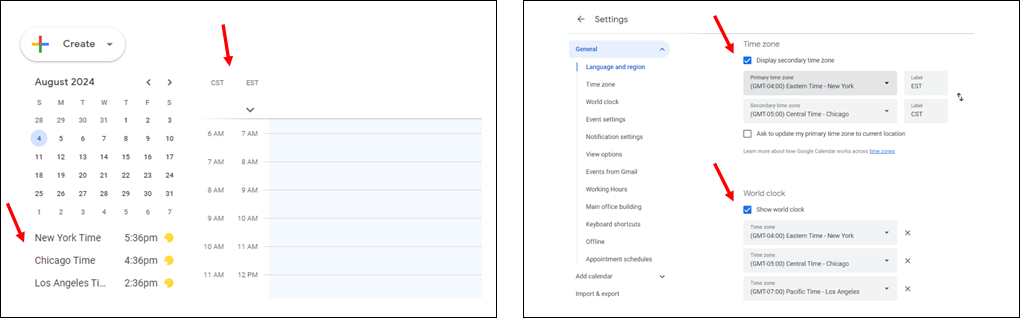
- Go to Settings (gear icon)
- Click on SETTINGS
- Click on TIME ZONE from left hand side – you will see your default time zone (primary) which will update to your current location
- Select to display a secondary time zone, select that time zone and label it however you like. Now your calendar will show the primary and secondary time zones to the left of the calendar grid.
- To add additional World “Clocks”, click to Show World Clock
You can add as many time zones here as you’d like, providing you a quick snapshot of the times in those other locations without having to leave google calendar. Such a timesaver that I use all the time for reference!
Have fun incorporating some of these tips into your daily calendar routine. Remember, every mouse click saved brings you one step closer to reclaiming your time and making your day just a bit more efficient!