
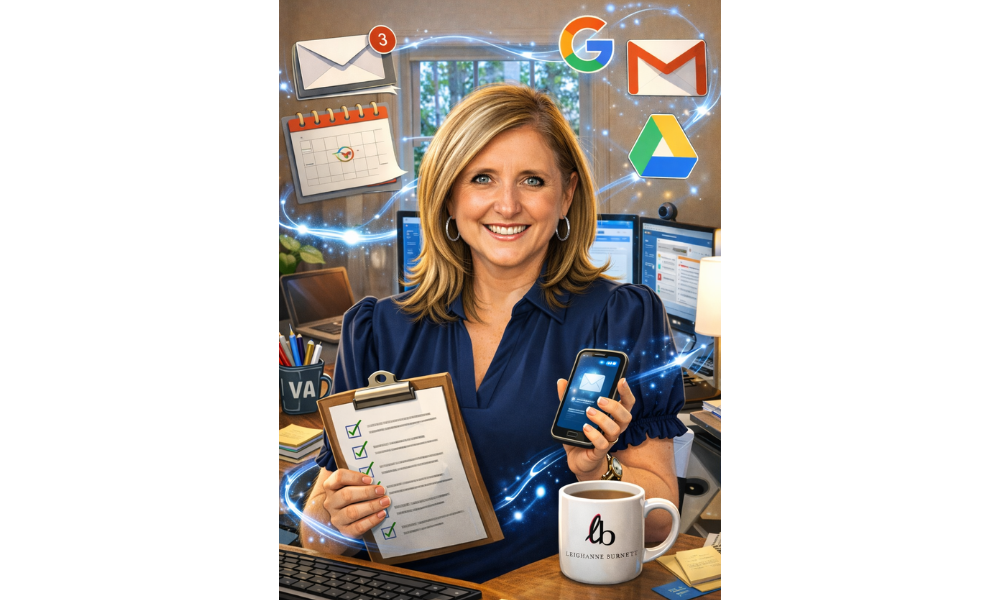
I hopped on the bandwagon this week and tried one of the fun AI caricatures making the rounds, using a simple prompt: “Create a caricature of me and my job based on everything you know about me.”
The first image I got back was good — but it felt generic.
It wasn’t until I added a photo of my actual office and my business logo that the image really came together and felt like me.
And that’s when the idea for this newsletter clicked.
If you’ve ever thought, “AI is helpful, but it doesn’t quite sound like me…” — this one’s for you.
Here’s the thing: AI works best when it understands how you work, not just what you ask.
Most people jump straight into prompts without giving any context. That’s like asking a new assistant to help you without explaining your role, your clients, or your preferences.
The fix is simple: a personalization prompt.
Once you tell AI a little about who you are, the tools you use, and how you like information delivered, the responses get clearer, more relevant, and far more usable.
Below is a copy-and-paste personalization prompt you can use in ChatGPT (or any AI tool you’re working with). Update the details to fit your role and workflow, save it somewhere handy, and reuse it whenever you start a new AI conversation.
______________________________________
Personalization Prompt:
You are my AI assistant. I want you to tailor your responses to how I actually work.
Here’s what you should know about me:
– My role/business: [what you do]
– Who I support: [clients, audience, or industry]
– My priorities: [speed, accuracy, clarity, creativity, etc.]
– Tools I use often: [Gmail, Google Docs, Canva, Motion, Zoom, etc.]
– My communication style: [friendly, concise, professional, bullet-driven]
– What I value most: [organization, follow-through, practical next steps]
– Things I don’t want: [fluff, jargon, over-complication]
Before responding to future requests, use this information to guide your tone, structure, and level of detail.
If something is unclear, ask one clarifying question before proceeding.
_________________________________________
💡 Pro tip #1: Save this prompt in a note or document so you can reuse it anytime in any AI tool.
💡 Pro tip #2: You can add this personalization directly into ChatGPT’s Custom Instructions so it automatically applies to every ChatGPT conversation.
How to Add This to ChatGPT Settings (Quick Steps)
- In ChatGPT, click your name or profile icon (bottom left).
- Select Custom Instructions (or Settings → Custom Instructions).
- Paste your personalization details into the field that asks how ChatGPT should respond to you.
- Save — and you’re done.
From that point on, ChatGPT will remember your preferences and respond accordingly, without you having to repeat yourself.
A small setup with a big payoff.
Once you try it, you’ll notice the difference immediately: fewer rewrites, better structure, and responses that actually sound like you.
Thank you for this. I have been dabbling in A! for a while so I thought I would ask ChatGPT what she thought we got into quite the discussion Gracie (that’s her name) and I It was very interesting and thought provoking.