

I’ve shared in the past that I’m a big fan of Google Workspace and have been using it since I launched my Virtual Assistant business back in 2011.
With Google Calendar being my go-to calendar program, I’ve learned some essential time-saving tips along the way that enable me to work smarter, not harder!
So as not to overload you, I’m going to break up the tips into two newsletters, so look for additional tips next week. Let’s get started!
Whether you’re a seasoned pro or a newbie, these Google Calendar tips will help you reclaim your time and boost your productivity!
Keyboard Navigation Shortcuts
Get to know these handy keyboard shortcuts!
(1) From anywhere in google calendar, you can hit the T key to be brought right back to today’s date.
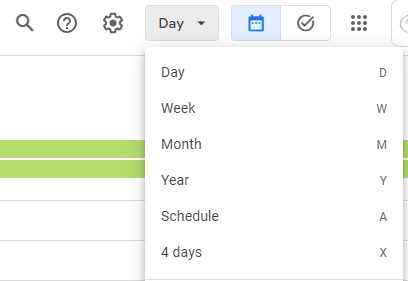
(2) Easily toggle between the different calendar views with a simple key stroke:
- D= Day View
- W = Week View
- M = Month View
- Y = Year View
- A = Schedule View
- X = Four-Day View
Pro Tip: To help you remember the different keyboard shortcuts, if you click to manually toggle between the different views, you will see the keyboard shortcuts listed right there and you will using them like a pro in no time!
(3) You can easily go to a date in the future without having to click thru all the days by clicking the G key and then entering the date, click Go/Enter and viola, you are transported right to that date!
Event Reminders and Notifications
Another tip to help you stay on top of events in Google Calendar is to adjust the event reminder time and notification types for your appointments.
Make sure the default event reminder and notification times work for you, and if they don’t, it’s super easy to change them!
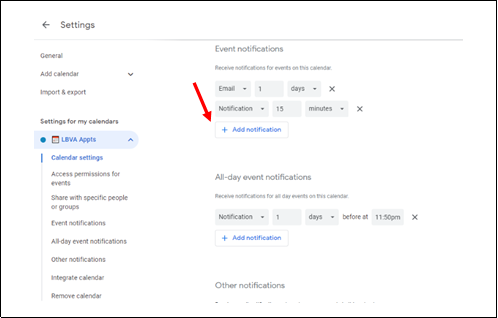
- Click on Settings (Gear icon)
- On the left side panel under SETTINGS FOR MY CALENDARS, click the calendar you want to adjust
- Scroll down to Event Notifications
- Click +Add Notification from here you can adjust the time and type of notification. Remember, this is where you set the default reminders/ notifications for ALL your calendar events.
If you have a very important event coming up that needs additional reminders/notifications, it’s very easy to set those up as well.
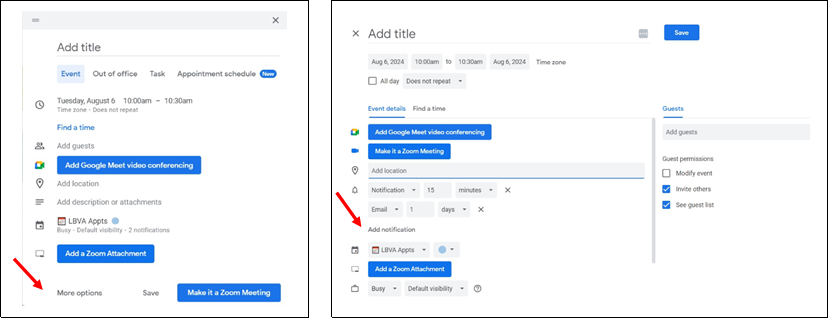
- Click to create an event
- Select More options at the bottom of the event window
- You will see your default notifications on this expanded event window. Under that you can click “Add Notification” to add as many additional notifications as you’d like for a particular event/meeting without changing your default reminders & notifications.
Practice your keyboard shortcuts and adjust your default event reminders and notifications, and I’ll be back next week with more tips!